
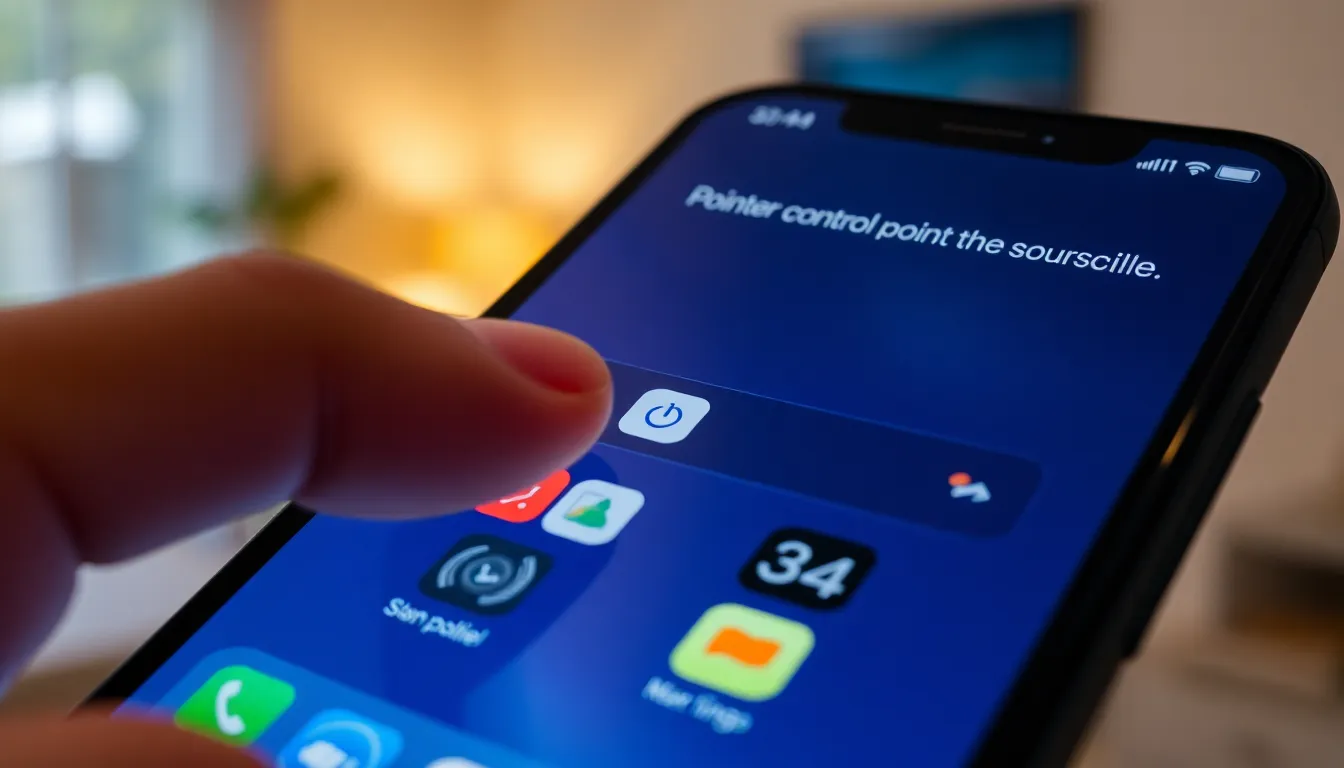
In a world where swiping and tapping reign supreme, Apple’s iPhone has introduced a game-changer: pointer control. Imagine transforming your device into a canvas where a tiny arrow dances at your command. It’s like giving your finger a break while letting your inner maestro take the stage.
What Is Pointer Control in iPhone
Pointer control on the iPhone allows for cursor-based navigation. With this feature, users interact with their devices through an on-screen pointer, enhancing accessibility and usability. This innovation caters specifically to those who prefer more precision than touch gestures provide.
Accessibility settings enable pointer control. Users can find it under Settings, then Accessibility, followed by Pointer Control. Adjustments such as pointer size and color improve visibility, making the feature adaptable for various preferences.
Using pointer control simplifies tasks like selecting text, clicking buttons, or navigating apps. The feature enhances productivity, particularly for users accustomed to traditional computer interfaces. Additionally, it provides an alternative for individuals with motor challenges.
Customization options offer users the ability to personalize their experience. Users can adjust speed, inertia, and even the pointer’s tracking method. These settings help users tailor the interaction to their specific needs.
Pointer control supports a variety of input methods. Devices like trackpads or magic mice complement the feature, bringing a desktop-like experience to mobile. This flexibility allows for seamless transitions between devices, making the iPhone a versatile tool for diverse tasks.
How Pointer Control Works
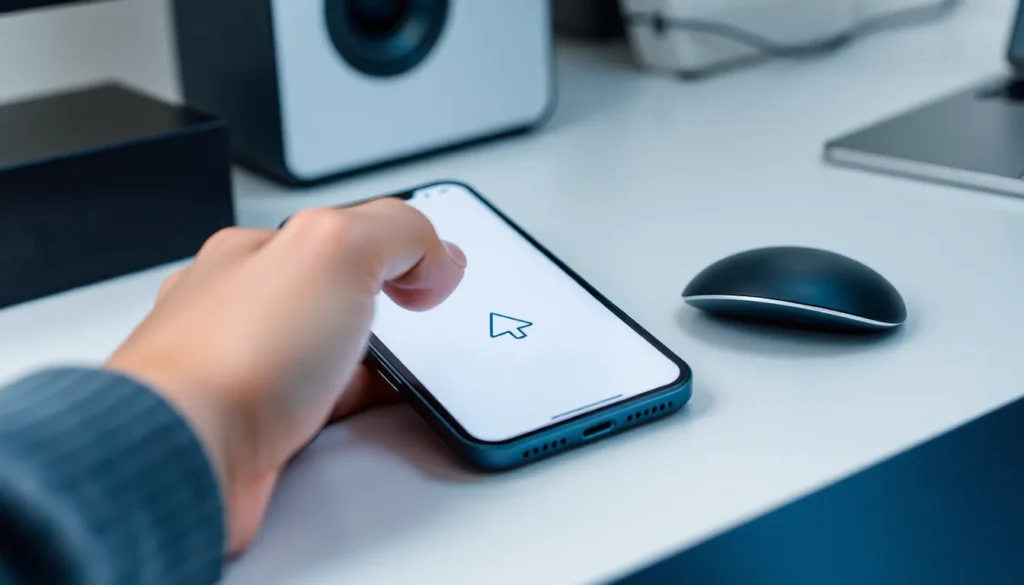
Pointer control enables users to navigate their iPhone with a cursor, enhancing their interaction experience. This feature complements touch-based navigation, offering an alternative for those who seek precision.
Touchscreen vs. Pointer Control
Touchscreens facilitate straightforward interactions, requiring gestures like taps and swipes. Pointer control offers a different approach, allowing users to move the cursor freely across the screen. Cursor-based navigation allows for more precise actions in tasks such as text selection and app navigation. Many users find operating iPhones easier when switching between touch and cursor methods. Consequently, the option to adjust cursor size and speed enhances usability for different user preferences.
Accessibility Features
Apple’s pointer control includes several accessibility features tailored for various needs. Users can adjust pointer color, size, and speed to improve visibility and comfort. Customization options enable individuals with motor challenges to navigate more effectively. Additionally, support for external devices like trackpads and mice creates a seamless user experience across different setups. These features contribute significantly to improving accessibility, making the iPhone more usable for everyone.
Benefits of Using Pointer Control
Pointer control enhances the user experience on iPhones by offering various benefits, particularly for navigation and precision.
Enhanced Precision
Cursor-based navigation provides greater accuracy when selecting text or interacting with app features. Users find it easier to point at small buttons or links without the risk of tapping the wrong element. This precise control reduces frustration and increases efficiency, especially for tasks that require fine motor skills. Customization options, including adjusting pointer size and color, allow individuals to tailor the experience to their needs. Enhanced precision particularly benefits users with motor challenges or those who prefer a desktop-like interface when using their devices.
Easier Navigation
Using pointer control simplifies navigation through complex menus and apps. Navigating lists or scrollable content becomes smoother thanks to the cursor’s ability to hover over items without needing to touch the screen. This method can significantly reduce the number of accidental touches, making it easier to reach desired content. The ability to switch seamlessly between touch and cursor control also empowers users to choose their preferred method, enhancing overall device usability. Importantly, external devices like trackpads or mice further streamline navigation, providing a desktop environment for mobile device users.
How to Enable Pointer Control
To enable pointer control on an iPhone, users can follow a simple series of steps within the device’s settings. Start by opening the Settings app. Next, navigate to the Accessibility section. Under Accessibility, select Pointer Control.
Once in Pointer Control, users can customize various aspects of the pointer. Adjusting pointer size allows for better visibility, while changing the color can enhance contrast against different backgrounds. Speed settings provide options to alter how quickly the cursor responds to movements. Users may also explore the Trackpad and Mouse Settings for additional refinement.
Accessing Pointer Control is straightforward. Open the Settings app, then tap on Accessibility. Select Touch, and locate AssistiveTouch. Turning on AssistiveTouch enables pointer control as a default feature. Users will then find the option to customize their pointers available for immediate access.
For those using external devices, enabling pointer control can provide a desktop-like experience. Users connecting a magic mouse or trackpad will find that pointer settings automatically apply to these devices. Adjustments made in the Pointer Control menu apply seamlessly, providing a consistent experience.
Customizing pointer control enhances overall usability. Users with motor challenges benefit from various settings tailored to their needs. Those who prefer navigating with a mouse will find the transition between touch and cursor methods intuitive. With these settings, navigating apps becomes easier, ensuring that all users can customize their device to fit personal preferences.
Common Issues and Troubleshooting
Pointer control on iPhones can occasionally present users with challenges. Users may notice their cursor unresponsive or slow to react. In this case, checking the pointer speed settings proves helpful. Adjusting these settings within the Accessibility menu can resolve issues related to cursor lag or sensitivity.
Another common issue involves cursor visibility. If the pointer becomes difficult to see, changing the pointer color or size can improve visibility. Users should explore the customization options in the same Accessibility section for better clarity during navigation.
Sometimes, connecting external devices like trackpads or mice can lead to connection problems. Ensuring proper pairing through Bluetooth settings may solve this issue. Users should verify that the devices are charged and within range for optimal performance.
Users may also encounter accidental selections or incorrect placements while using pointer control. Reducing the cursor size can enhance precision, especially for users engaging with smaller interface elements. Fine-tuning these settings allows more controlled interactions.
It’s also crucial to remember that switching between touch and pointer methods may produce confusion. Users should familiarize themselves with the switch options in the settings to streamline their experience. Adjusting sensitivity settings can further lessen the chances of unexpected interactions.
If these troubleshooting steps do not resolve issues, restarting the device often resets various settings automatically. Regular software updates can improve functionality, so keeping the iPhone updated is beneficial. This practice allows users to enjoy the latest enhancements and fixes Apple continuously provides.
Pointer control on iPhones represents a significant advancement in user interaction. By offering a cursor-based navigation option it caters to a diverse range of users seeking precision and accessibility. This feature not only enhances usability but also empowers individuals with motor challenges to navigate their devices more effectively.
With customizable settings for pointer size color and speed users can tailor their experience to meet personal preferences. The ability to connect external devices like trackpads and mice adds another layer of convenience making iPhones feel more like traditional computers. Pointer control transforms the way users engage with their devices ultimately leading to a smoother and more efficient experience.